
Your profile photo shapes first impressions. Here’s how to make it stand out professionally.
Core
✅ Add a cover image
✅ Choose a cover image style that is relevant to your industry, employer or business
✅ When adding text to the cover image, add up to 10 words and focus on one message
✅ For premium users: create a slideshow cover image to
It’s best practice to have a cover image, as recommended by LinkedIn. If you don’t have one, upload your own or select one of LinkedIn’s default covers by clicking the pencil icon at the top right corner of the cover image section on your profile.
Common options are
Go browsing. Look at 5-10 other people’s cover images to find a style you like.
Check out colleagues (they might use a company-branded background you like), influential figures, or people in similar professions (and consider connecting with them).
Examples of interesting cover images:
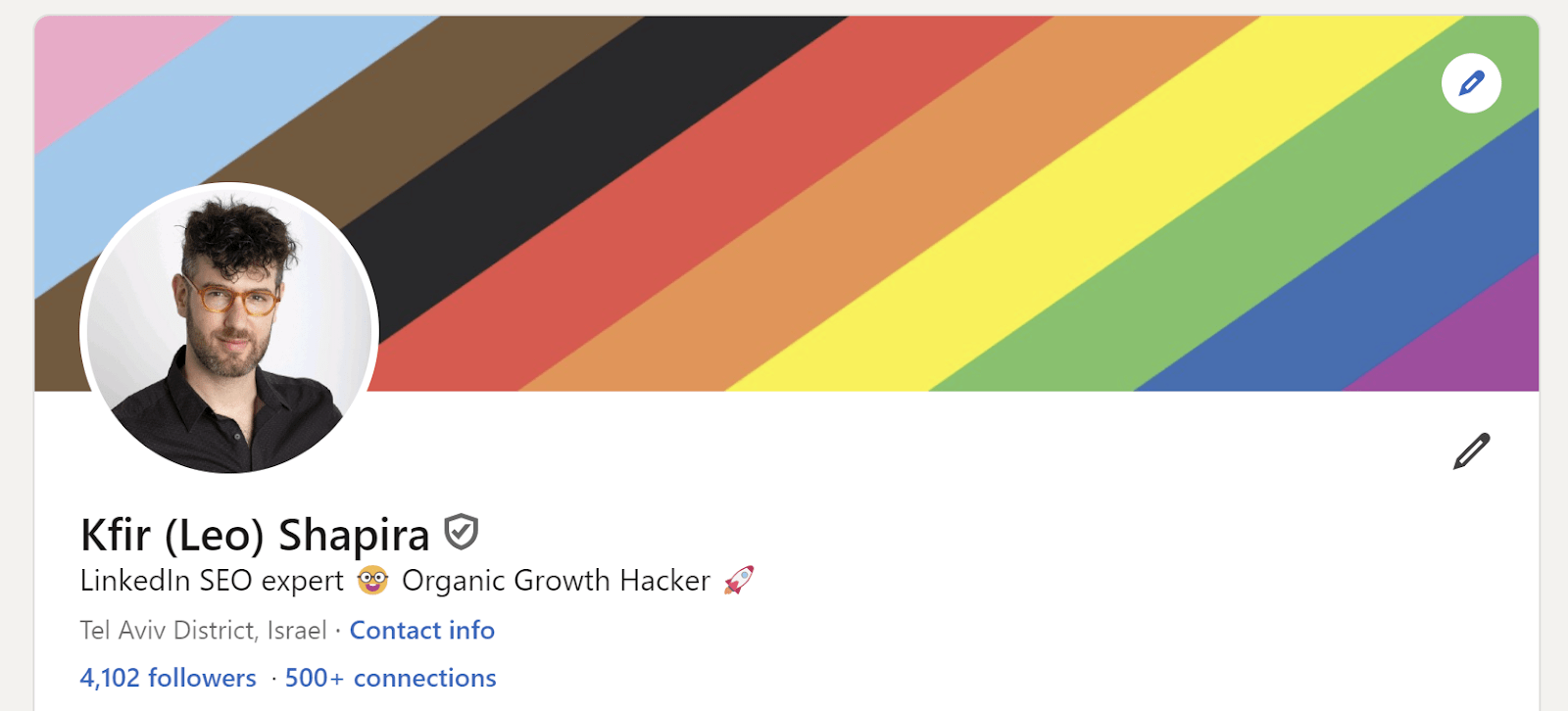
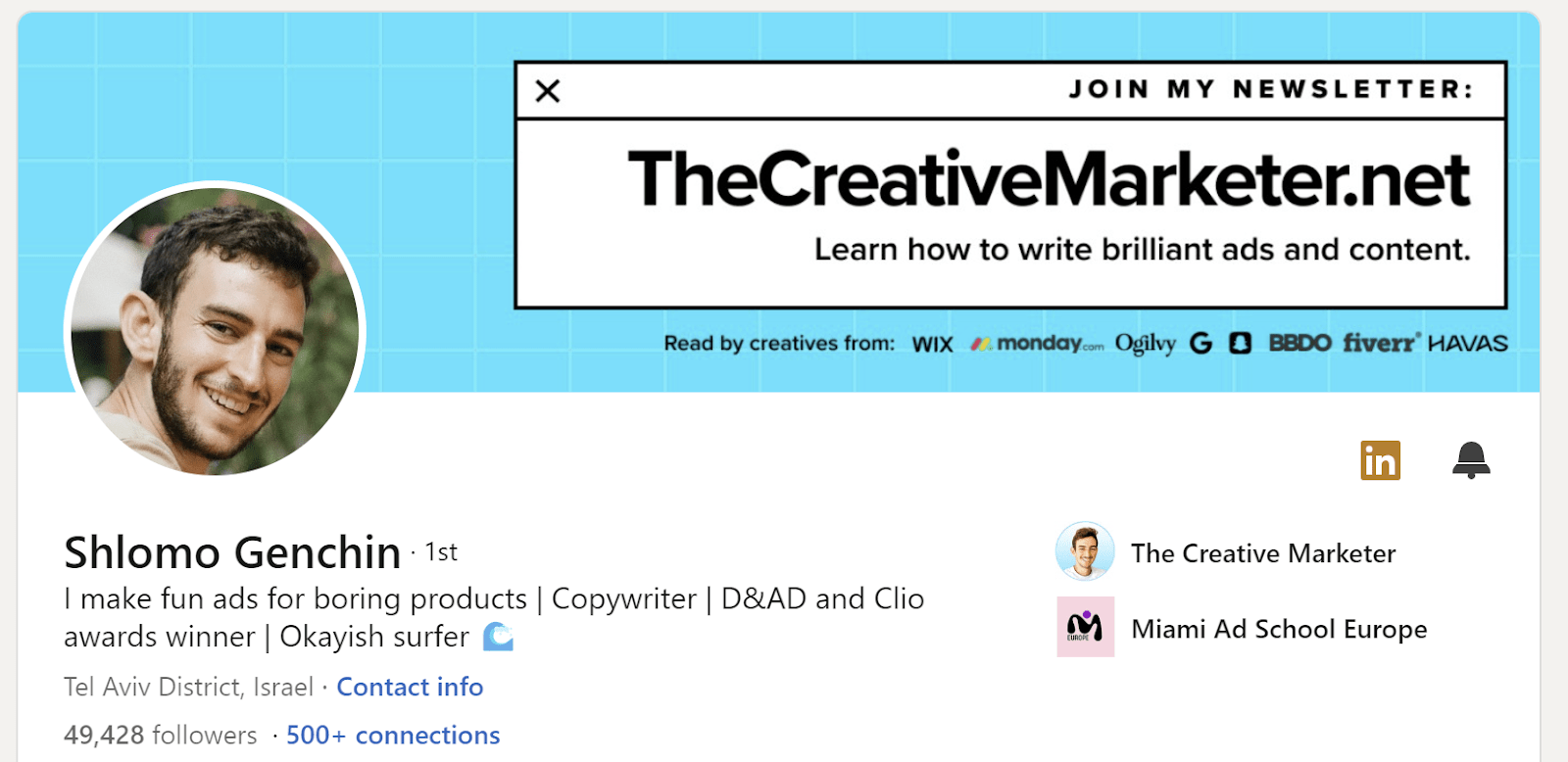

Across your profile, the background image should look well and in the same theme as the profile picture and the featured posts
Try the cover slider feature, you can add up to 3 images as your cover. To add a sliding cover, click on the pencil to edit the cover image and choose Create Slideshow
.gif)
Next, optimize your headline

